Launch price for the first release · 14-day money-back guarantee

Screen recorder for Mac

Record once.
Fix it without re‑recording.

Four minutes into a walkthrough, you fluff a line. Don't start again. Retake just that step, flag mistakes as you talk, and export with an SRT captions file and a levelled voice.

One payment, no subscription. 14-day money-back. macOS 15 or later on Apple Silicon.

Pay once

No subscription for the version you buy.

No account

Open it and record. There is no sign-up to start.

Your files, your Mac

Projects save to a folder you choose.

Captions made locally

English transcription runs on your Mac.

Built for the take that almost worked.

Nine tools in one app. Each one is there so a small slip doesn't cost you the whole recording.

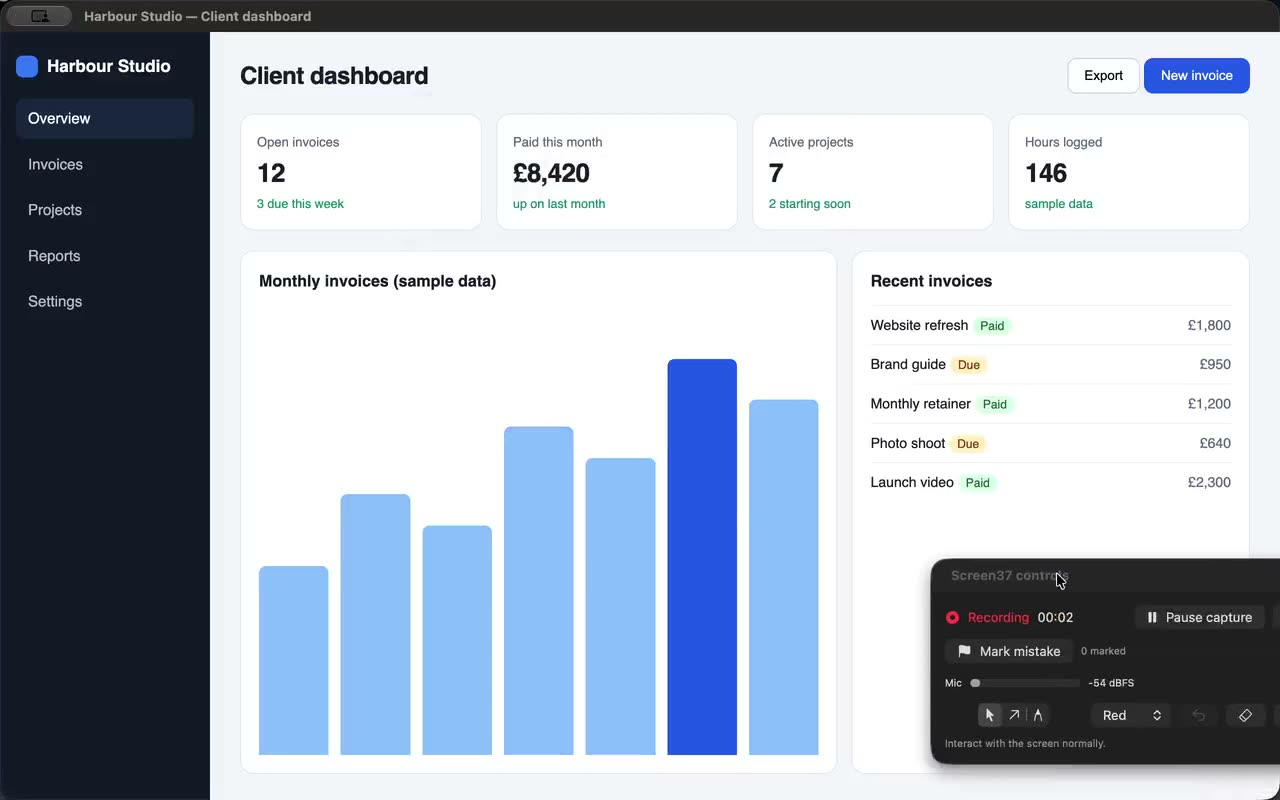
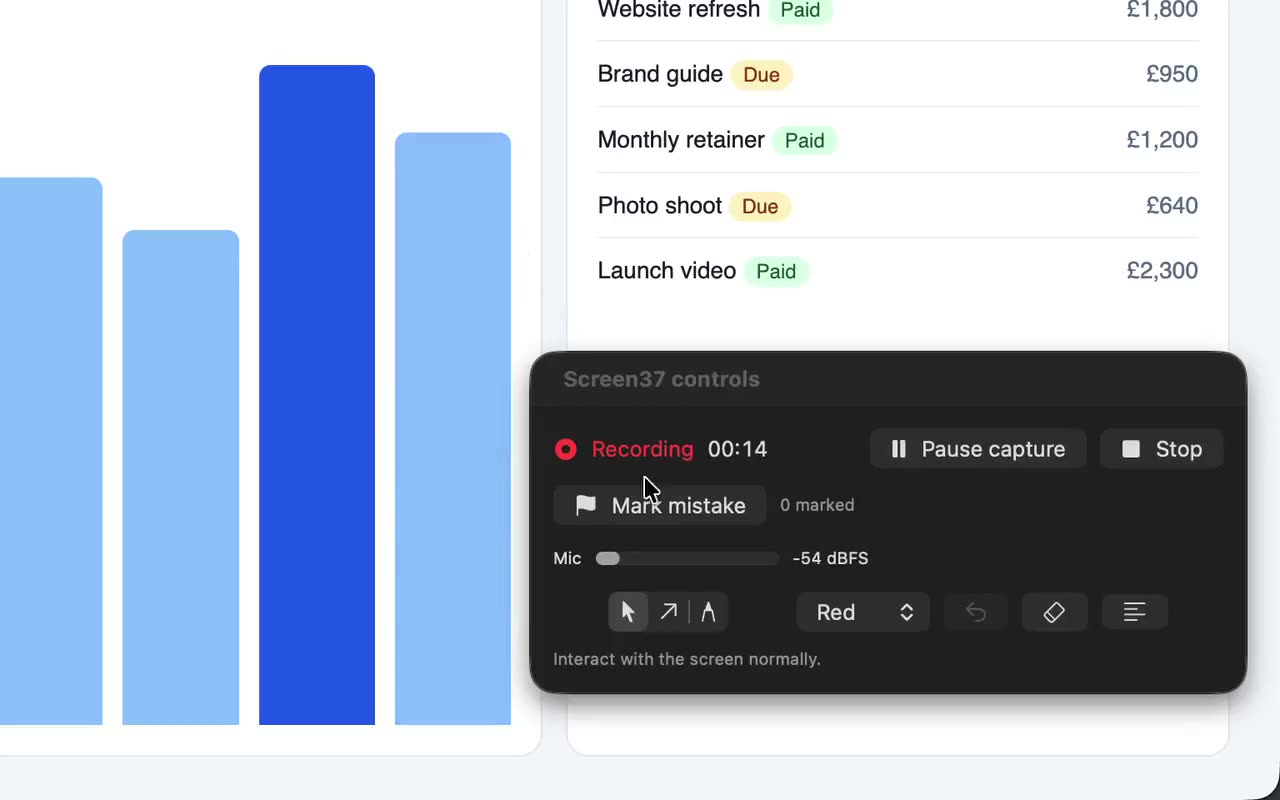
A three-second countdown, then the recording controls appear over the dashboard.

Count in, then just talk.

Choose a whole display or a single window, check your mic is live, and press Record. A countdown gives you a moment to settle. Then a small floating panel holds Pause, Stop and Mark mistake, and Screen37 leaves its own windows out of the recording.

  • A whole display, or only the window you are explaining
  • A countdown of 3 or 5 seconds, or none
  • Pause for a loading screen and the wait is left out
Read your script. Nobody sees it.

Write what you want to say inside the project, then show it as a teleprompter next to whatever you are recording. It scrolls by hand or at a steady speed, and it is left out of the video.

  • Make the text as large as you need
  • Scrolling stops when you pause the recording
  • Show or hide it with a keyboard shortcut
Pressing Mark mistake while recording, then opening the flag afterwards.

Flag it and keep talking.

You know the moment you fluff a line. Press Mark mistake and carry on. Afterwards every flag is waiting in a list, so you go straight to the slip without scrubbing through the whole recording to find it.

  • One click, or a keyboard shortcut
  • Name each flag and jump to it
  • Tick each one off as you review it
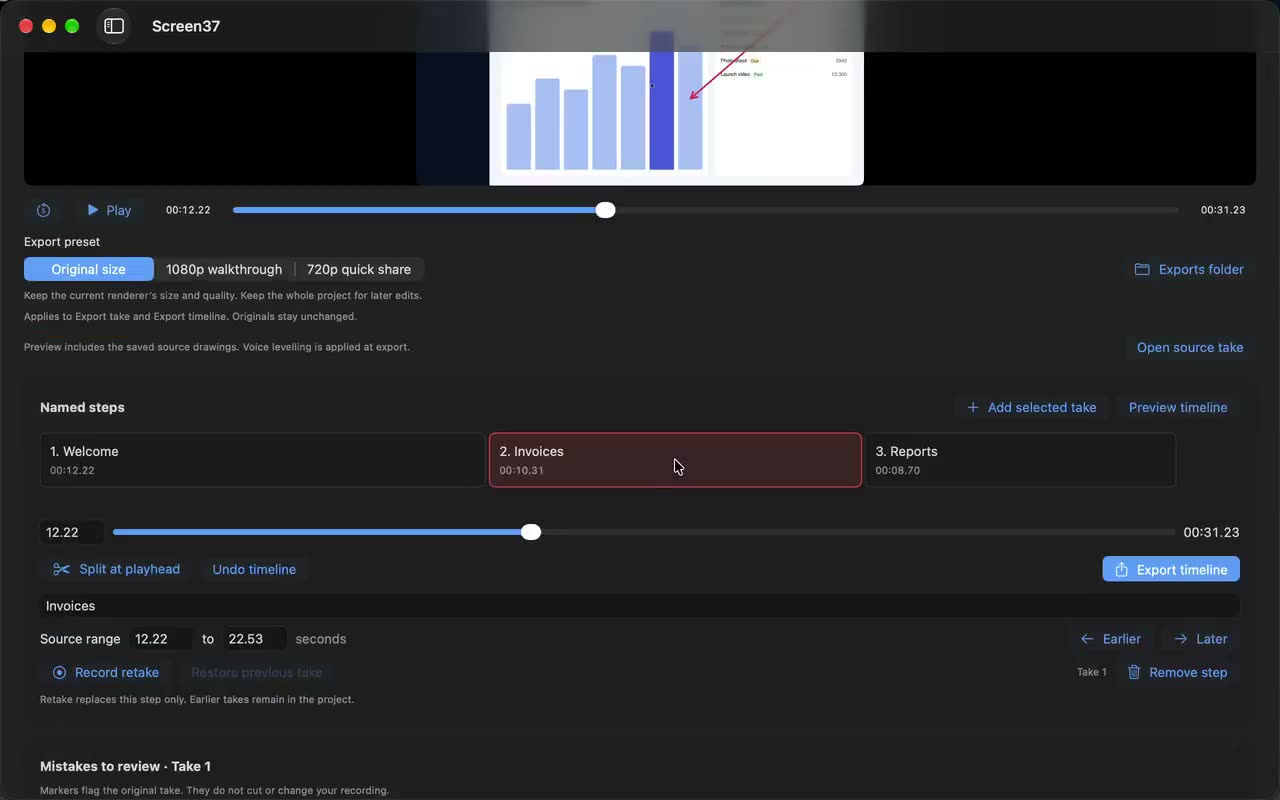
Selecting step 2 in the step strip and recording a retake.

Fluffed step four? Redo step four.

Split your recording into named steps and record again only the one that went wrong. The new take drops into the same place, and the earlier take stays in the project in case you liked it better.

  • Name, reorder and split steps
  • Re-record one step, not the whole video
  • Restore the previous take at any time

Put a face to the walkthrough.

Add your camera as a round bubble in a corner of the recording, so people see who is talking them through it. It is recorded together with your screen, in one take.

  • Any of the four corners
  • Check the picture before you start
  • Pauses and resumes with the recording
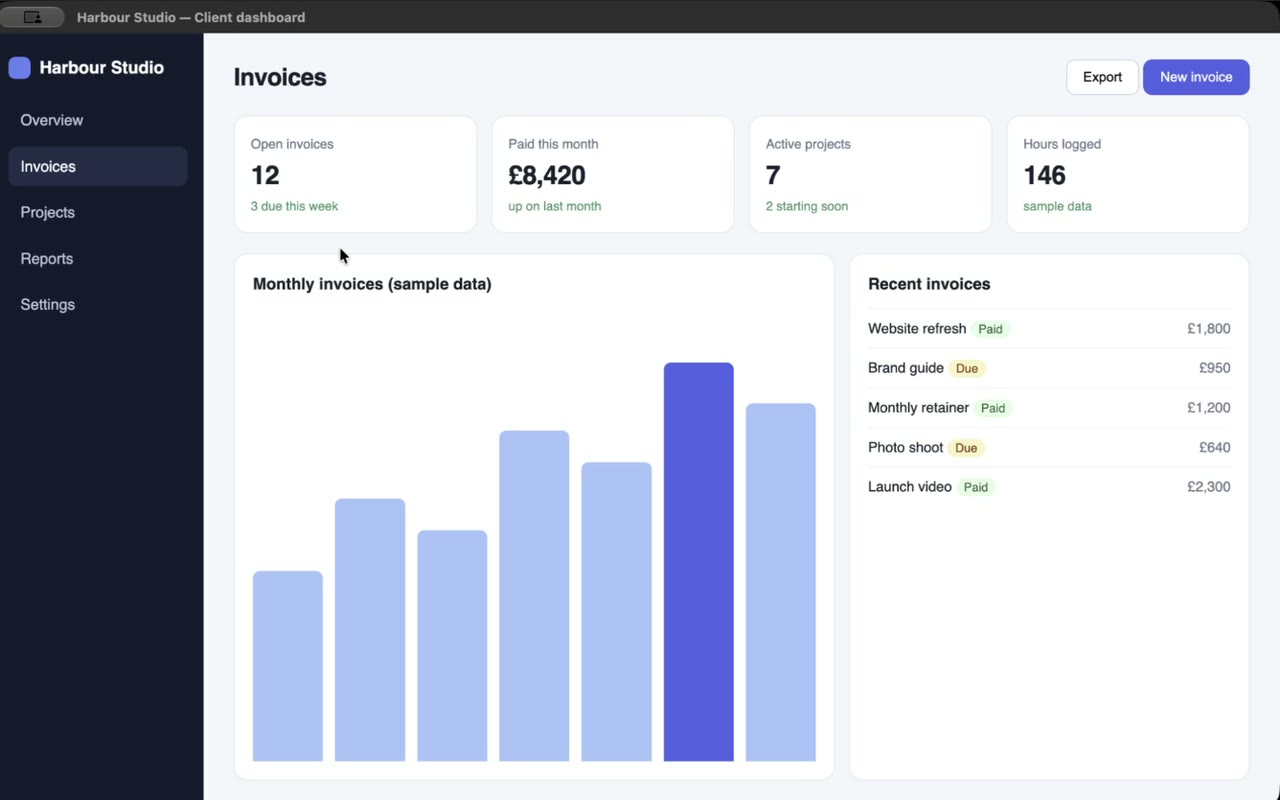
Illustration: a red arrow and a hand-drawn ring being drawn over a recorded dashboard.

Point straight at it.

Draw an arrow or a quick sketch to show exactly what you mean, while you record or afterwards. Each one is a layer on top of your recording, so you can change when it appears or remove it later.

  • Arrows and freehand sketches
  • Draw live, or add them after recording
  • Set when each one starts and ends
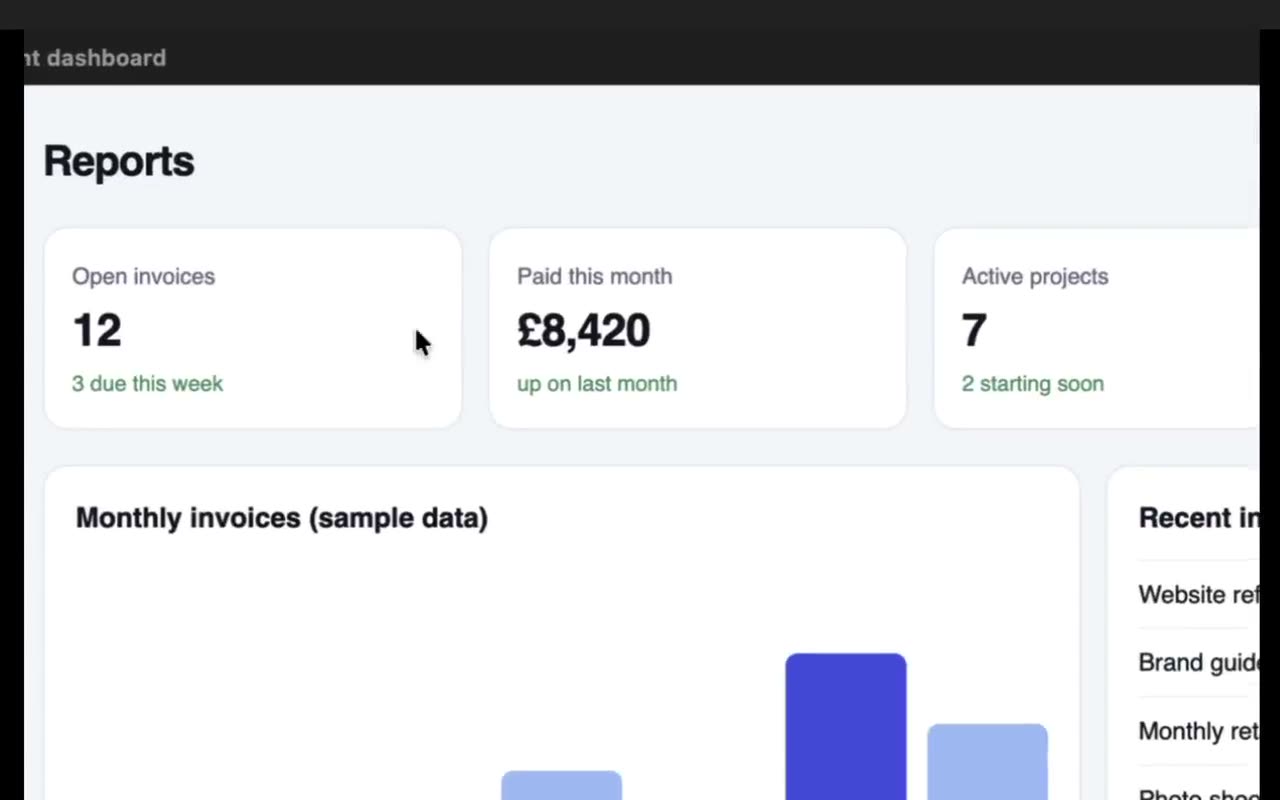
Choosing an area of the recording, then the same recording zoomed in on it.

Show them where to look.

Small text is hard to read in a screen recording. Drag a box around the part that matters and Screen37 zooms in on it, or let the frame follow your pointer. You can change it or switch it off afterwards.

  • Drag a box around what matters
  • Hold the zoom, or follow your pointer
  • Your original recording is left untouched
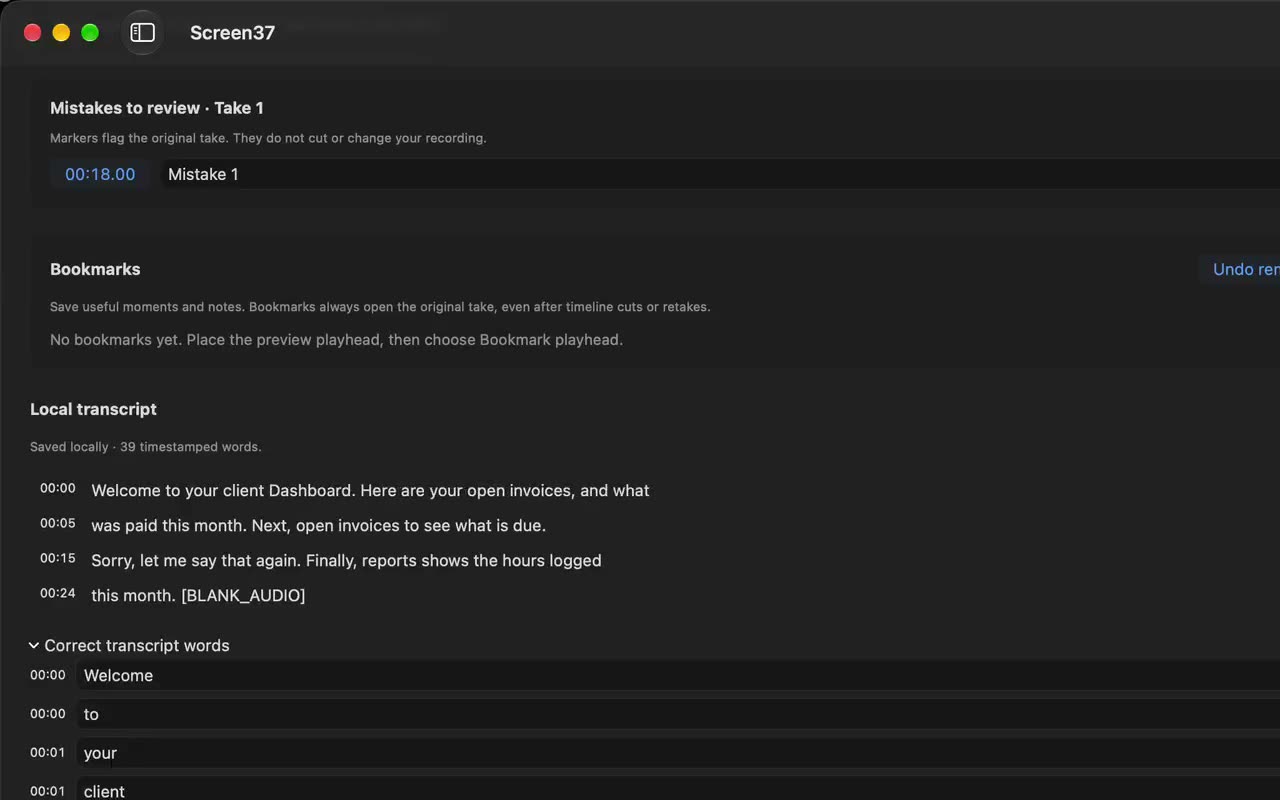
The transcript of a recording, with one word being corrected.

Captions without uploading anything.

Screen37 turns English speech into text on your Mac. Fix any word it got wrong, then export an SRT captions file next to your video, ready for wherever you post it.

  • Transcribed on your Mac, in English
  • Correct any word before you export
  • An SRT captions file beside the video
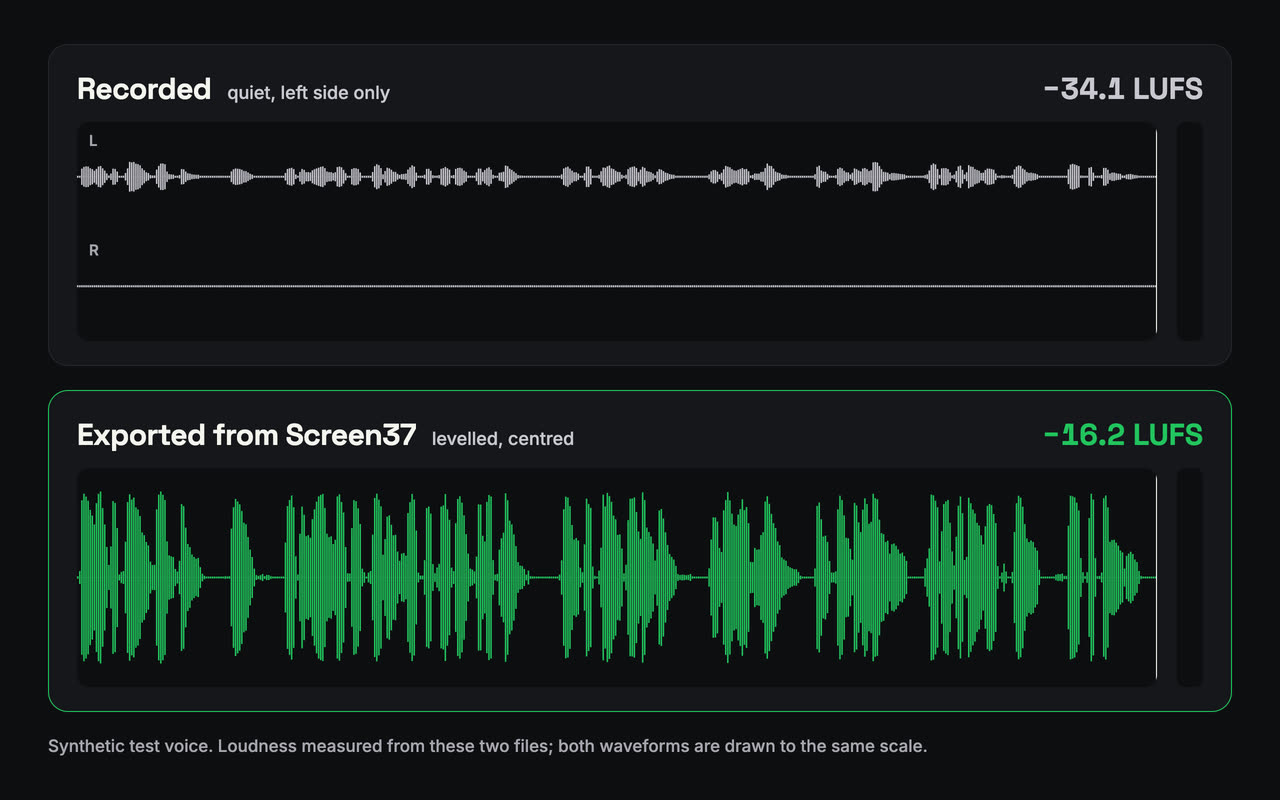
Sound levels of a quiet, one-sided recording before and after export.

Sound steady, even on a quiet mic.

A quiet microphone, or one that only plays in one ear, makes a good walkthrough hard to listen to. When you export, Screen37 centres your voice and brings it to a steady level.

  • Done for you on every export
  • A one-sided mic is centred
  • Your original recording is kept

One app instead of a stack of them.

A plain screen recorder gives you one long take. Everything after that is usually another tool. Here is what Screen37 does in its place.

The usual wayWith Screen37
One mistake and you record the whole thing againRetake only the step that went wrong
A separate teleprompter app, or notes stuck beside the screenA script panel that is left out of the video
Scrubbing through the recording to find where you slippedFlags you dropped as you spoke
A video editor to add arrows and zoomsArrows, sketches and zooms as layers you can change
Uploading your video to a captions serviceEnglish captions made on your Mac
An audio tool to rescue a quiet microphoneYour voice levelled when you export
Takes, scripts and exports scattered across foldersOne project folder, and a search across all of them
A monthly bill, with your recordings on someone else's serversOne payment, and files that stay on your Mac

Watch the 30-second ad

Also on YouTube

Then see a whole walkthrough

79 seconds of the real app, with on-screen captions and no sound.

From a blank screen to a finished video.

  1. Pick what to record

    A whole display or one app window. Choose your mic, check the level, and add your camera if you want it.

  2. Talk it through

    A countdown, then you're recording. Pause when you need to, mark a mistake and keep going, draw arrows as you explain.

  3. Fix and export

    Retake one step, trim, then export at original size, 1080p or 720p, with your voice levelled and an SRT captions file.

The everyday parts are covered too.

What renting a recorder adds up to.

An example, not a named product.

1 year

$216

3 years

$648

Screen37

$79 once

Your recordings stay yours.

Recording only starts when you press Record. Your takes, scripts, notes and transcripts stay in the project folder on your Mac. Screen37 checks your licence; it doesn't upload your videos.

Know this before you buy.

  • It needs an Apple Silicon Mac with macOS 15 or later.
  • It records your screen and your microphone, not the Mac's system audio.
  • Transcription and captions are English only for now.
  • There are no hosted share links: you export a file and send it your way.
  • Lifetime means the version you buy keeps working.

One price. Yours to keep.

Everything on this page is included. There is nothing to upgrade to.

Screen37 lifetime

$79one-time

  • Display or window recording with mic and camera bubble
  • Script panel with a teleprompter that is left out of the video
  • Countdown, pause and mistake markers
  • Step timeline with retakes, trims and arrows
  • Zoom and pointer follow
  • Local English transcription, an SRT captions file and voice levelling
  • Use on up to 3 of your Macs
Buy Screen37

14-day money-back guarantee. Checkout by Polar, our merchant of record.

What happens after you pay

  1. You land on the activate page straight away.
  2. Download Screen37 and drag it to Applications.
  3. Activate with the licence file from that page.
  4. Record your first walkthrough.

Doesn't work on your Mac? Email within 14 days for a full refund.

Questions

Is it a subscription?

No. You pay once and the version you buy is yours to keep using.

Who takes my payment?

Polar. Polar is the merchant of record for Screen37: it takes your payment, adds any VAT or sales tax and sends your receipt. Circle 37 Ltd makes Screen37 and gives you the licence.

Can I fix one bit without starting again?

Yes. Split your recording into named steps and retake just the one you want. Earlier takes stay in the project, so you can switch back.

Are my recordings uploaded anywhere?

No. Your takes, scripts, notes and transcripts stay in the project folder on your Mac. Screen37 checks your licence; it doesn't upload your videos.

How many Macs can I use it on?

Up to 3 of your own Macs with one licence.

Which Macs does it run on?

Apple Silicon Macs on macOS 15 or later. Intel Macs aren't supported.

What if it doesn't work for me?

If Screen37 doesn't work on your Mac, email us within 14 days of buying for a full refund. Refunded licences stop working.

Record it once.
Fix only what went wrong.

Get Screen37 for $79

One payment, no subscription. 14-day money-back. macOS 15 or later.

Screen37 · $79 once
14-day money-back

Buy Screen37